
This guide is for beginners who have never used an API before and want an AI assistant like Codex, Cursor, Claude, or ChatGPT to help with the setup.
Think of an API as a way for your app to ask FreeAstroAPI for astrology data. Your API key is like a private password for those requests, so the main rule is simple: never paste the full key into public code or a public chat.
By the end, you will have a free account, one API key, and ready-to-copy prompts you can give to your AI coding assistant.
1. Open your FreeAstroAPI dashboard
Create a free account if you do not have one yet:
After signing in, open your dashboard:
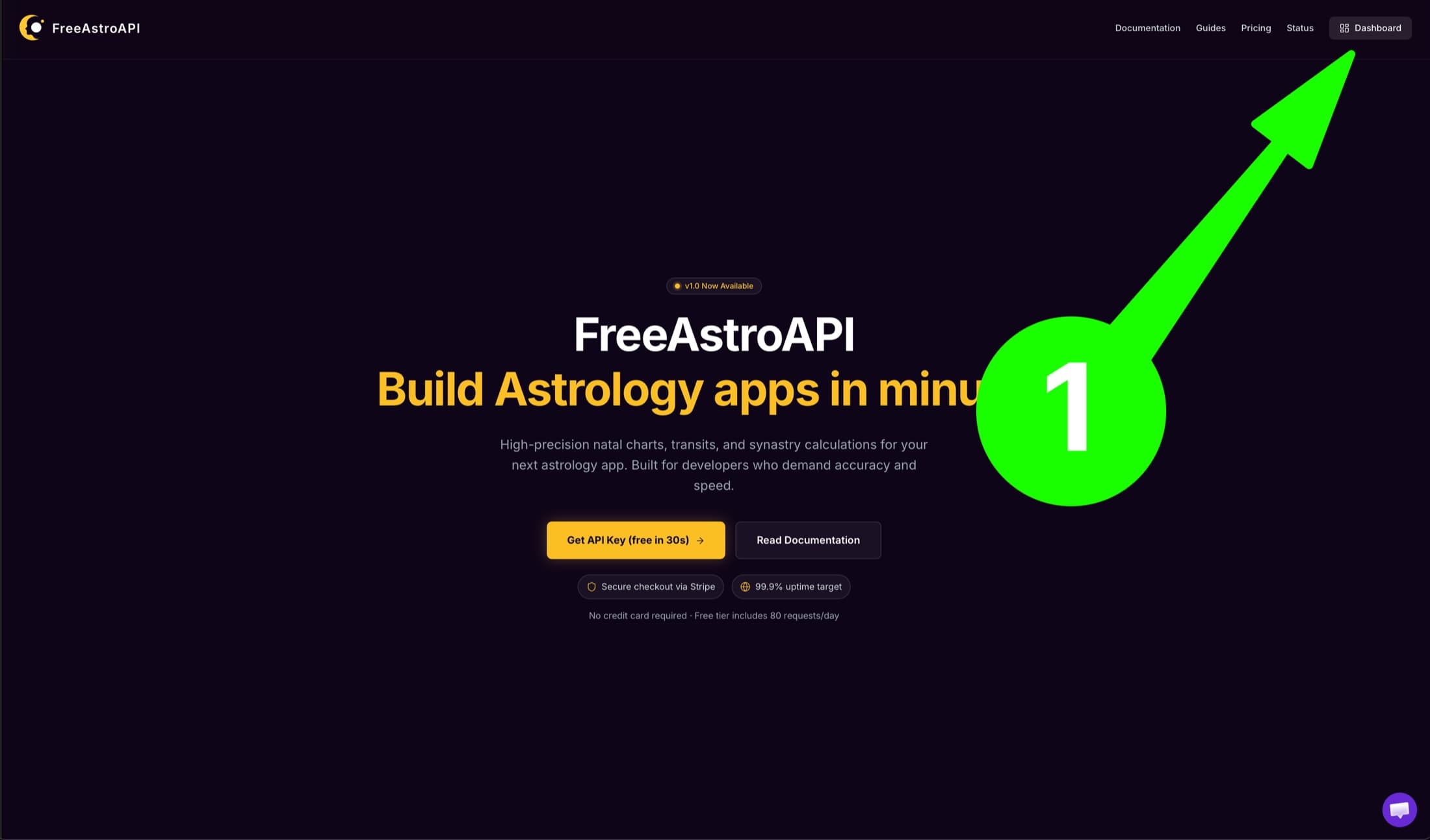
If you are already signed in from the homepage, click Dashboard in the top-right navigation:
2. Create your API key
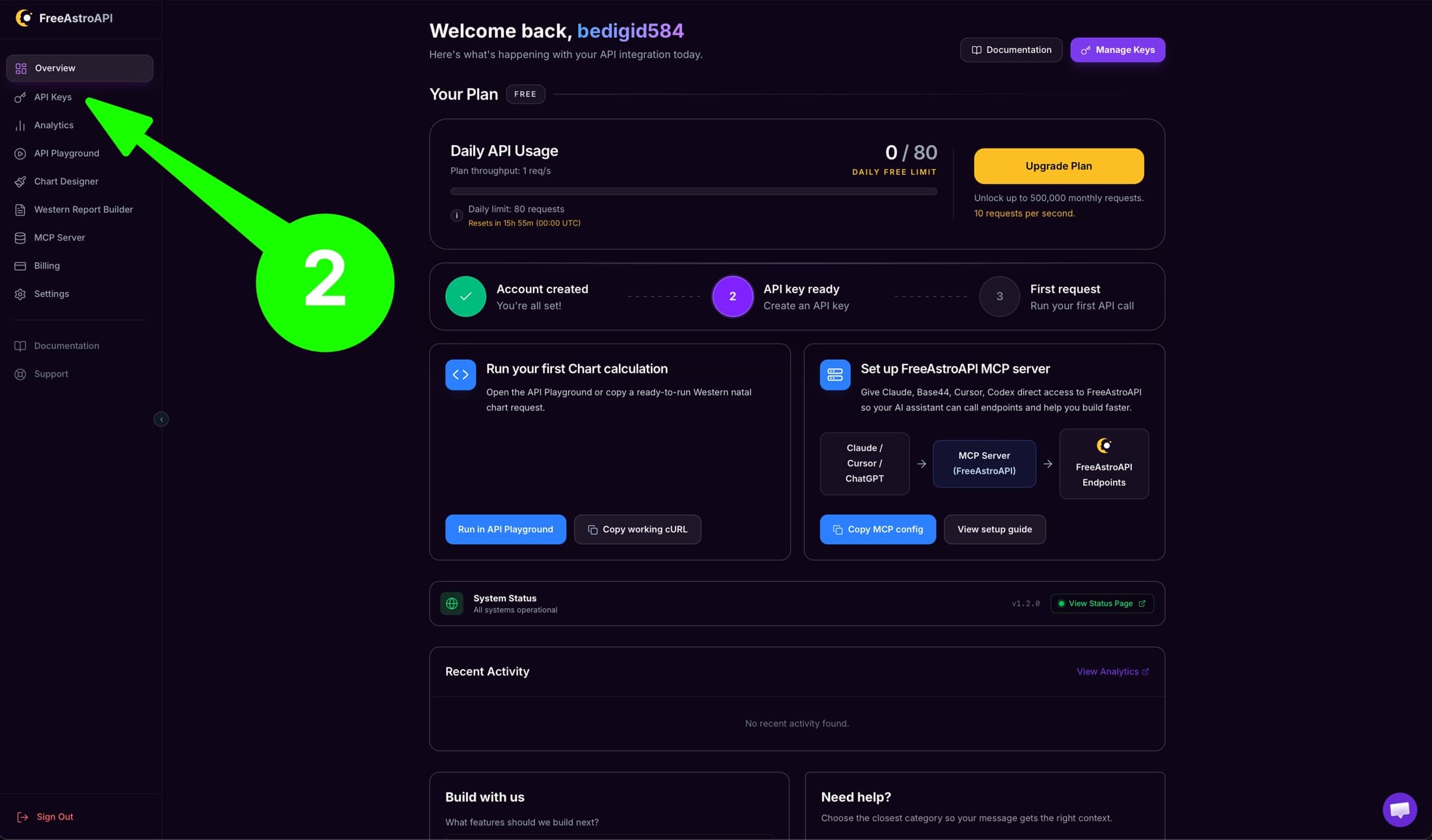
In the dashboard, open API Keys from the left sidebar.
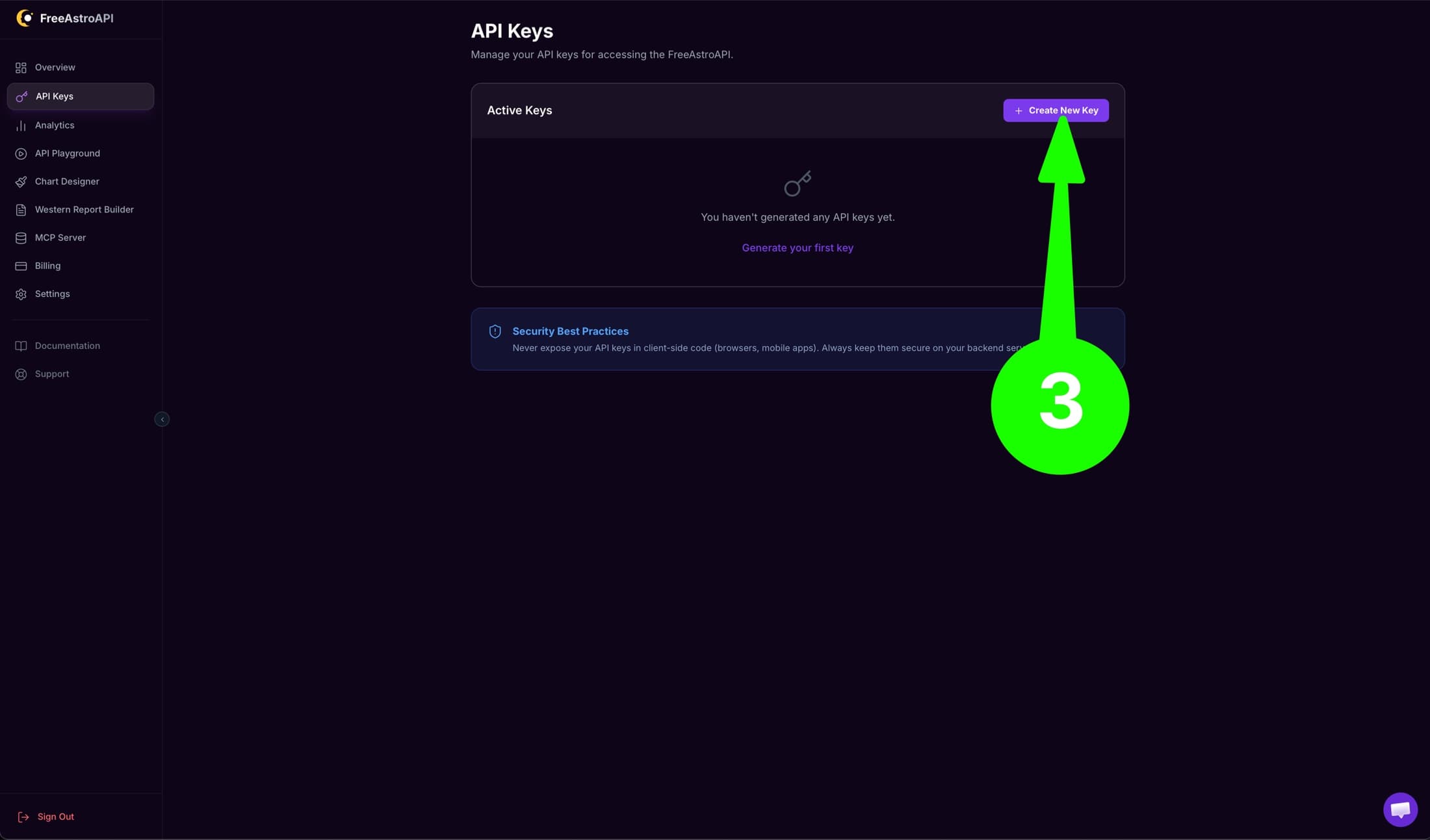
Click Create New Key.
Give the key a simple name, for example:
Local developmentWhen the key is created, copy it immediately. The full key is shown only once.
If you are not sure where to save it, do not guess. Ask your AI assistant with the next prompt.
3. Ask AI where to put the key
Open your project in your AI coding tool and paste this prompt:
I am a beginner using FreeAstroAPI.

Please inspect my project and tell me exactly where private environment variables should go.

Do not ask me to paste my full API key into this chat.

Use this environment variable name:
FREE_ASTRO_API_KEY

If I need to create a file, tell me the exact filename and where it should be placed.
After I add the key, remind me if I need to restart my app.

Explain this in simple beginner language.
Your AI assistant will usually tell you to create or edit a file for private settings. It may be named something like .env, .env.local, or another environment file depending on your project.
When it tells you where to put the key, add one line using this format:
FREE_ASTRO_API_KEY=paste_your_real_key_hereDo not use a name that starts with NEXT_PUBLIC_. That can expose the key to visitors in some apps.
4. Ask AI to connect FreeAstroAPI safely
After the key is saved, give your AI assistant this prompt:
I want to use FreeAstroAPI in this project.

I am a beginner, so please make the smallest safe test possible.

Use this API base URL:
https://api.freeastroapi.com

Use my private environment variable:
FREE_ASTRO_API_KEY

Please create a server-side test that calls FreeAstroAPI and tells me exactly how to run it.

Important rules:
- Do not put the API key in browser code.
- Do not print the full API key anywhere.
- Do not create a public environment variable for the key.
- If you need to add a route, helper, or test file, explain what each file does in plain English.
If the assistant asks you to paste the full key into the chat, say no. The key should stay in your local private environment file.
5. Ask AI to make your first chart feature
Once the small test works, ask AI to build the first real feature:
The FreeAstroAPI connection test works.

Now help me create a simple first feature for my app:
- Ask the user for birth date, birth time, and birth city.
- Send that information to my own server first.
- From the server, call FreeAstroAPI using FREE_ASTRO_API_KEY.
- Show the result in a beginner-friendly way.

Please keep this simple and explain each step before changing files.
This is enough context for the AI assistant to choose the right files for your project.
6. If something goes wrong, use these prompts
If the app says the key is missing:
My app says FREE_ASTRO_API_KEY is missing.
Please help me check whether the environment file is in the right place.
Do not ask me to paste the full key.
Tell me whether I need to restart my development server.
If the assistant tries to put the key in frontend code:
Stop. The FreeAstroAPI key must stay private.
Please move the API call to a server-side place in this project and explain the safer structure in simple language.
If the API request fails:
My FreeAstroAPI request failed.
Please help me debug it step by step.
Check the API base URL, the private environment variable name, and whether the request is being made from the server.
Do not print or expose my full API key.
7. Simple safety checklist
- Keep the full API key private.
- Do not paste the full key into public chats, screenshots, GitHub issues, or frontend code.
- Use the environment variable name
FREE_ASTRO_API_KEY. - Restart your app after adding or changing the key if your AI assistant tells you to.
- If you accidentally expose a key, delete it in the dashboard and create a new one.